
Knowing a macOS trick is one thing. Pulling it up without thinking is another. I've saved a pile of "ultimate cheat sheets." By Tuesday I've usually forgotten half of them.
This list is smaller on purpose. It's what I actually use when a deploy runs long, when someone wants a screenshot in Slack, or when Terminal is open and I don't want the mouse. No taxonomy essay. Just what stuck.
When sleep is the enemy: caffeinate
You kick off a long job (import, build, whatever), walk away, and the Mac decides it's nap time. Screen locks, power stuff gets cute, and you come back to half a mess.
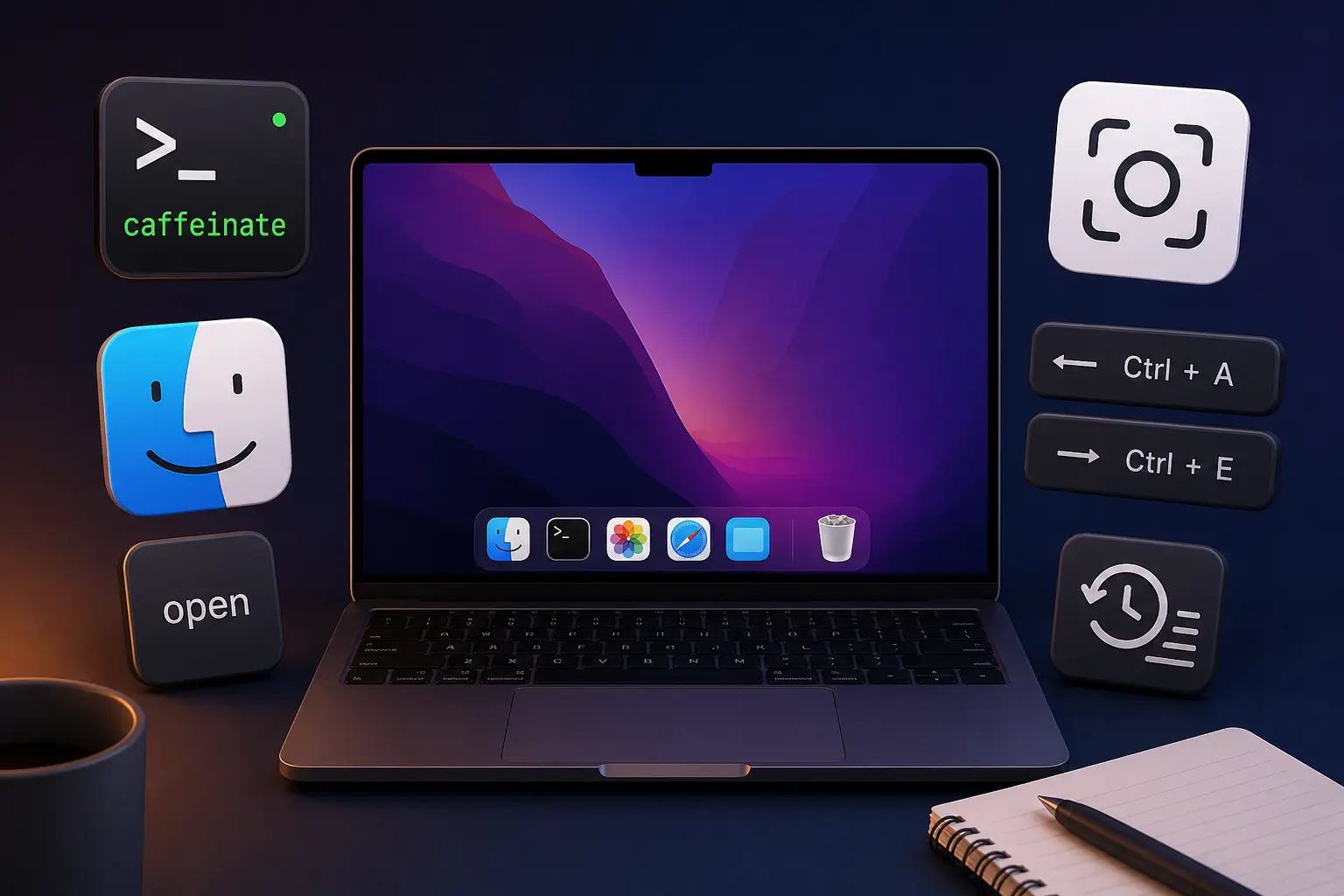
caffeinate is the boring built-in that says: stay awake while I'm doing this.
The pattern I use most:
caffeinateRuns until I hit Ctrl+C. While it's running, the machine actually stays up.
To tie it to one command:
caffeinate ./slow_script.shWhen the script exits, the extra wakefulness goes with it.
Flags exist for display, disk, idle, and the rest. When I care about the details, I read man caffeinate instead of memorizing another acronym.
Screenshots: file, clipboard, or the full studio
I screenshot more than I'd admit. Not for show, for context. A crop of an error, a UI state, a chart: the picture is often faster than a paragraph no one will read.
Two modes in my head: save to disk, or land on the clipboard so I can paste.
| Shortcut | What it does |
|---|---|
| ⌘⇧3 (Command+Shift+3) | Captures the full screen to a file (default location follows your Screenshot settings). |
| ⌘⇧4 | Lets me drag a region; saves to a file. |
| ⌘⌃⇧4 (add Control) | Same region flow, but copies to the clipboard, so there's no file clutter. |
| ⌘⇧5 | Opens the Screenshot toolbar: timed shots, window picks, screen recording, and where saves go. |
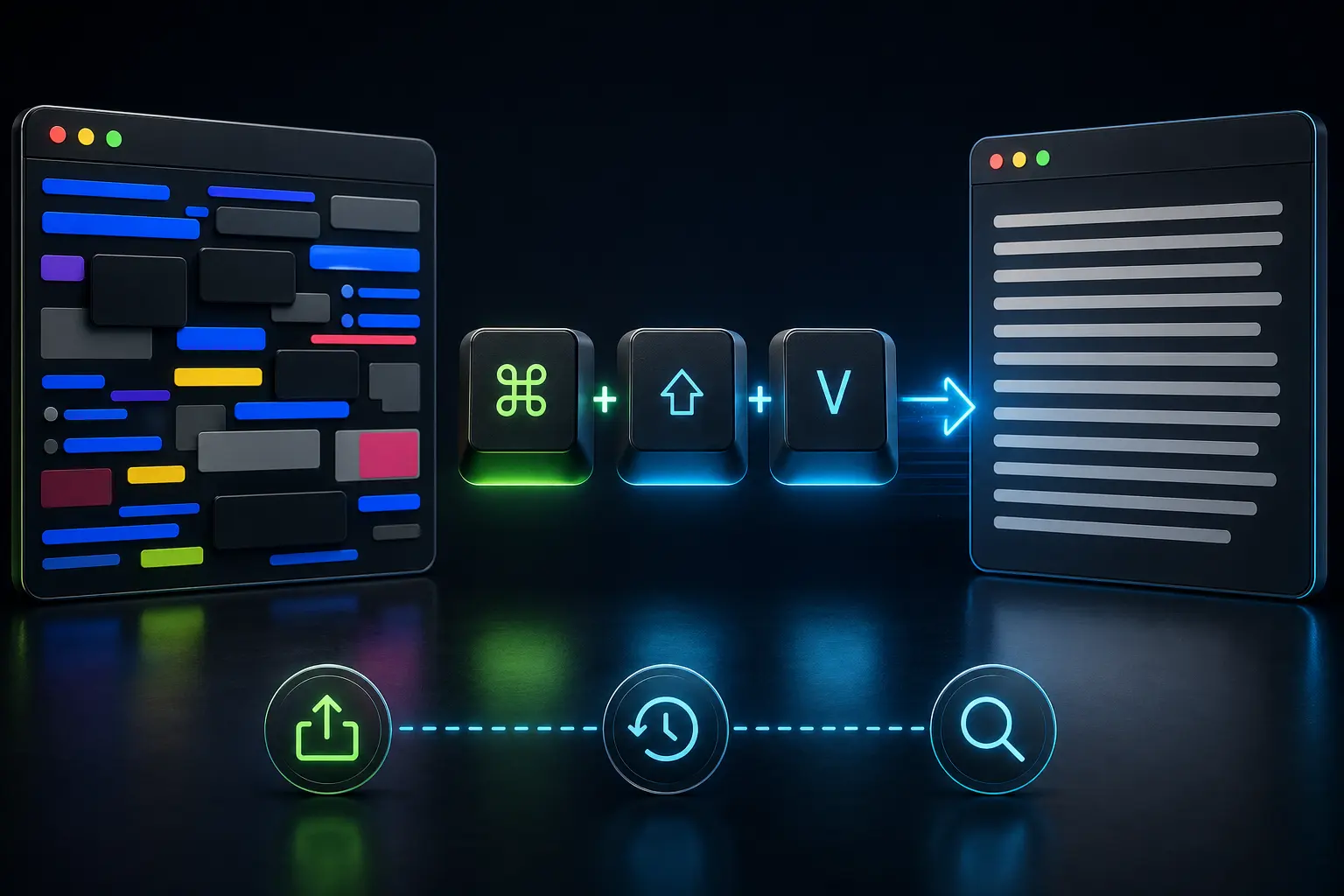
After a clipboard capture I paste with ⌘V in most apps. If you live in Terminal or a cross-platform editor, Ctrl+V might be the finger habit anyway. Same job: get the image off the clipboard and into the thread.
If I need to change where files go or grab a quick screen recording, ⌘⇧5 is the one I stop on. The rest is muscle memory.
Apple lays out the shortcuts in Take a screenshot or screen recording on Mac if you want the official map.
Finder without the detour: open
You're deep in a path and someone says "just open it in Finder." You could click around. Or not.
open . is the current directory in Finder. One period. That's the trick.
open readme.md hands the file to whatever app owns that extension: Preview, Xcode, whatever macOS picked.
For a specific app, open -a "App Name" still beats digging through Open With. That's the whole religion for me.
Terminal: jump to the ends of the line
Long commands happen. Docker one-liners. curl with headers. You're parked in the middle and need the start or the end fixed.
Readline shortcuts still feel unfair in a good way:
- Ctrl+A: cursor to the start of the line
- Ctrl+E: cursor to the end of the line
Small motions. They add up. I'm not trying to type faster; I'm trying not to lean on the arrow keys until my thumb checks out.
history: scroll less, grep more
When I forget yesterday's exact flags, history dumps what the shell remembers. Loud and simple.
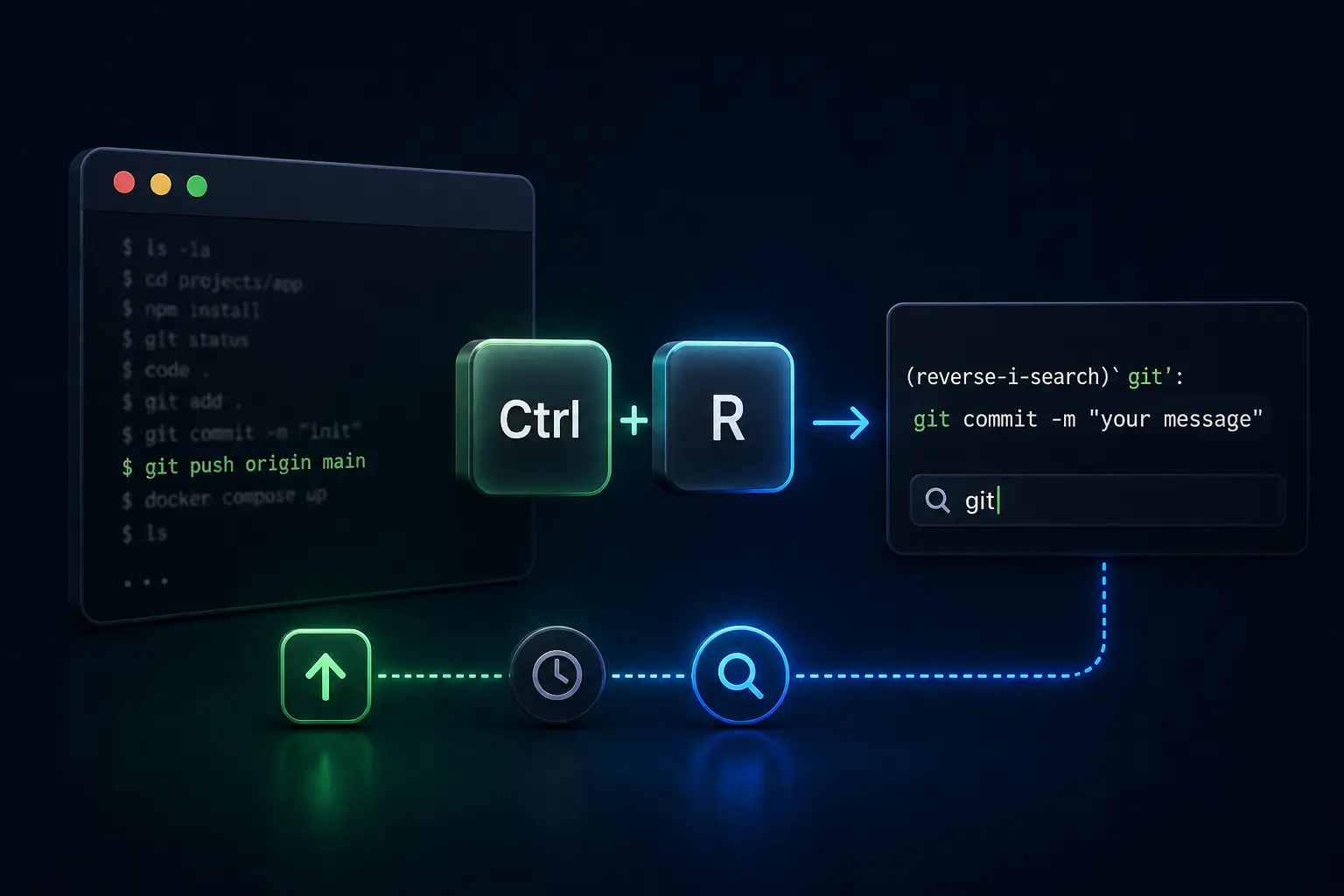
I still use reverse search (Ctrl+R) when I want to hunt interactively. If that's new, I wrote a shorter piece here: Stop scrolling Terminal history on macOS. history for the list; Ctrl+R when you want one match back.
The actual cheat sheet
Skimmers still win:
- Stay awake:
caffeinate(stop with Ctrl+C), orcaffeinate your-command - Screenshots: ⌘⇧3 full screen · ⌘⇧4 region to file · ⌘⌃⇧4 region to clipboard · ⌘⇧5 full controls
- Finder / files:
open .·open file.ext - Line hops: Ctrl+A / Ctrl+E
- Remember commands:
history(and Ctrl+R when you want search)
What I'd do next
Try one shortcut on purpose for a few days. "Daily" only happens when your hands believe it.
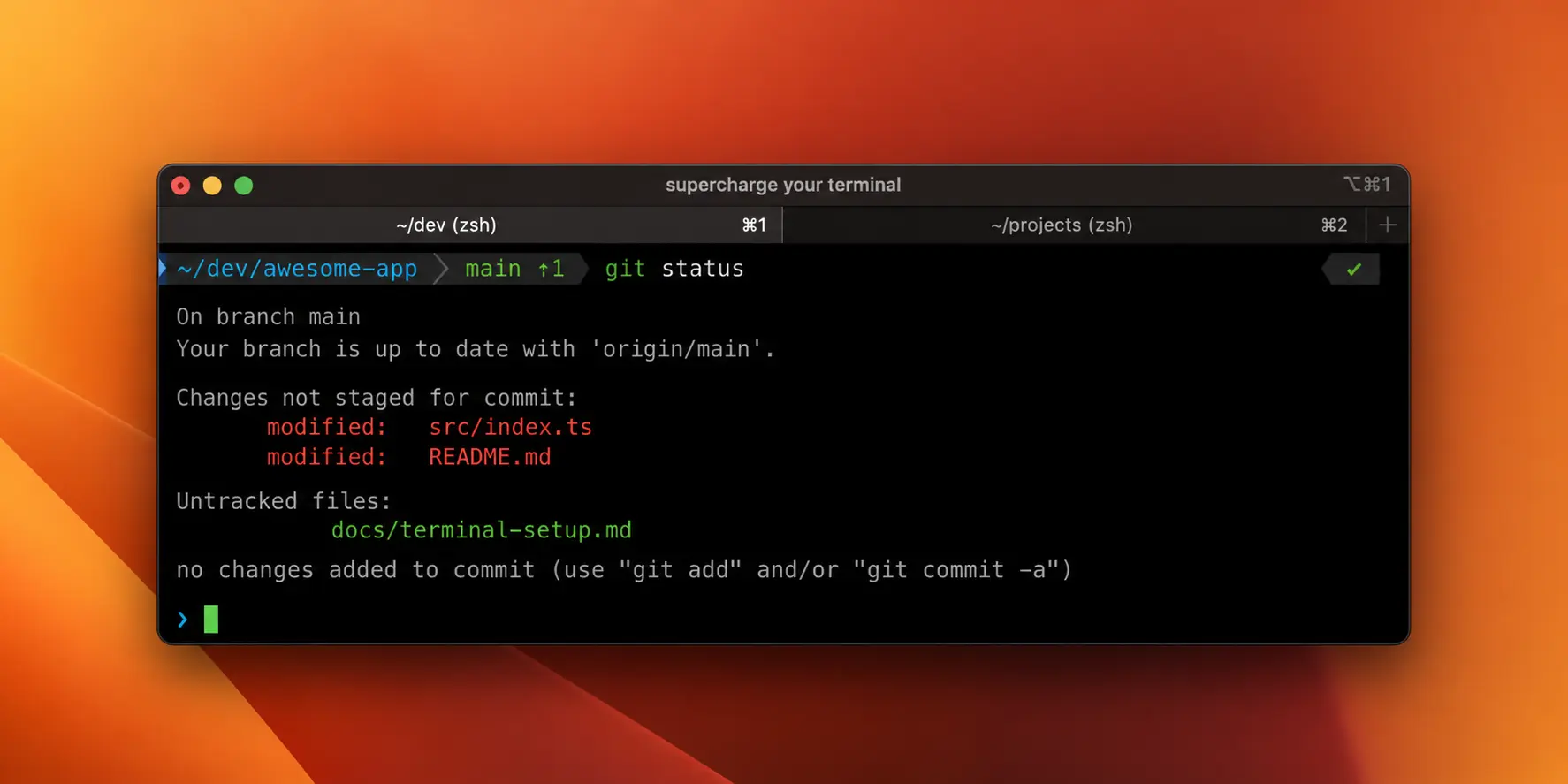
If you want the heavier terminal setup (iTerm2, Oh My Zsh, fuzzy search), the long version is Supercharge your Terminal: iTerm2, Oh My Zsh, Powerlevel10k, and fzf.