
The frustration
On a multi-monitor Mac, the window you need is often on the wrong screen. You can nudge it over with the trackpad or by dragging the title bar, but when you are mostly on the keyboard that starts to feel like busywork.
I wanted a move I could repeat: focus a window, hit a shortcut, land on the next or previous monitor. macOS moves windows in some cases on its own, but not the way I wanted for day-to-day work.
What worked: Raycast "Previous/Next Display"
Raycast includes a Window Management extension. Move to Previous Display and Move to Next Display take the focused window and put it on the previous or next screen in macOS’s display order (how your physical monitors are chained).
That is separate from switching Spaces (virtual desktops) on a single display. Mission Control is its own thing, covered below.
Set it up
- Open Raycast → Settings (e.g. Raycast menu → Settings, or the command palette entry for settings).
- Open Extensions.
- Find Window Management (Raycast’s built-in window features).
- Open Move to Previous Display and Move to Next Display.
- Assign shortcuts in the hotkey field. I use Option + Left Arrow and Option + Right Arrow so they are easy to reach and paired.
In Raycast → Settings → Extensions → Window Management, you should see Next Display and Previous Display with ⌥→ and ⌥← (the UI may label the commands a bit differently; the hotkey column is what you are matching).
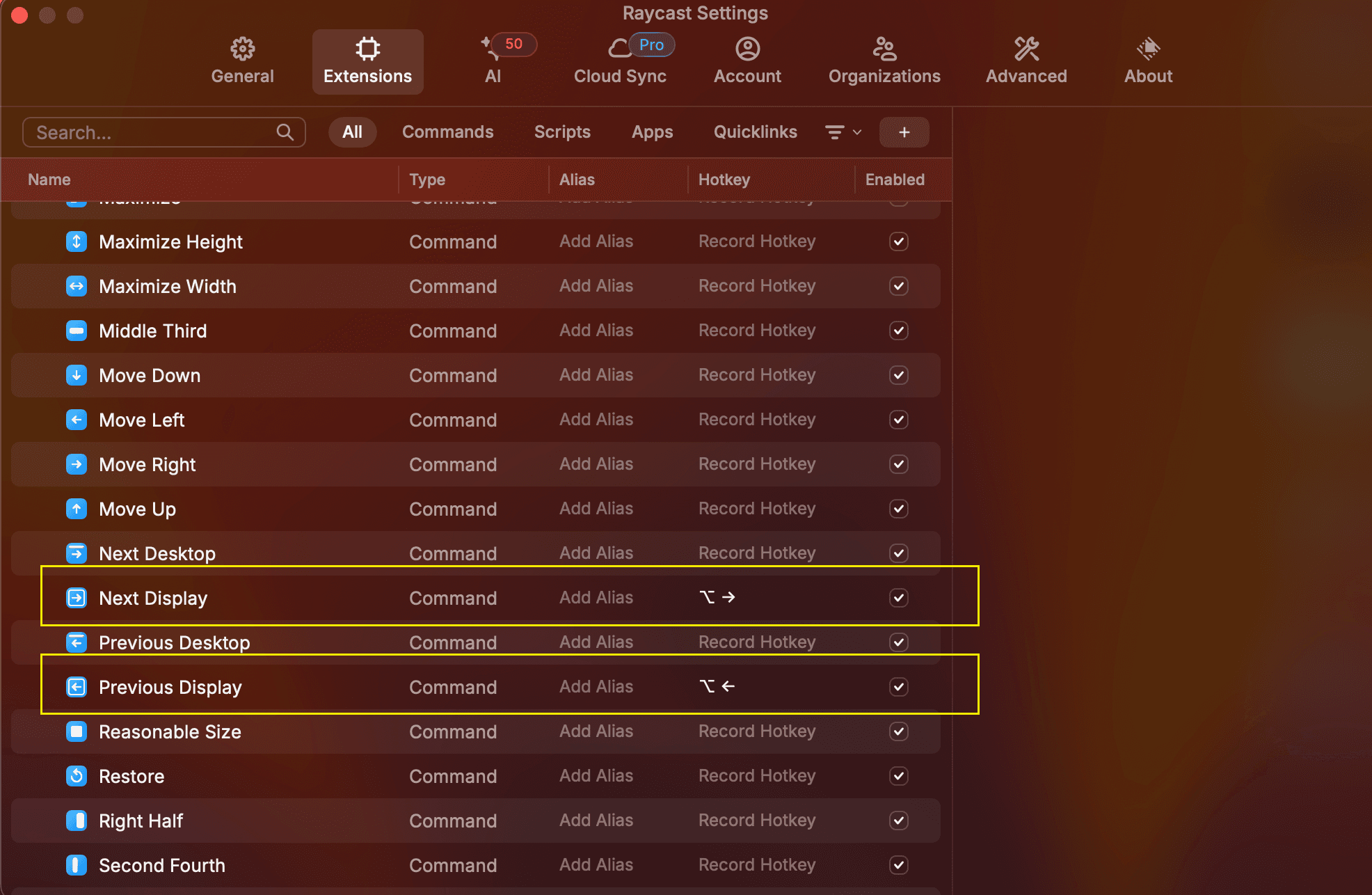
With a window focused, those shortcuts move it. No mouse.
If nothing happens (multi-monitor quirks)
Some people have seen these commands stop responding after connecting or disconnecting a display while Raycast is still running. If that happens, try remapping each hotkey to something else, checking that the command works, then putting your preferred keys back (an approach Raycast’s issue tracker records for similar display-related glitches). Newer Raycast releases handle display changes more reliably; keeping the app updated helps.
Spaces: Control + arrow
Raycast only moves windows between physical displays. Spaces (Mission Control’s virtual desktops) are different: more than one desktop on a screen, or full-screen app spaces, with shortcuts of their own.
On a typical US layout, the defaults in System Settings → Keyboard → Keyboard Shortcuts → Mission Control are:
- Control + Left Arrow: move left one Space
- Control + Right Arrow: move right one Space
When to use which
- Multiple displays, window on the wrong screen → Previous/Next Display in Raycast.
- One display, several Spaces, you need another desktop → Control + arrow keys.
I still drag windows sometimes, but most cross-monitor moves are Option + arrow now, and Control + arrow for Spaces. Small change, but it cut out most of the fumbling between screens.