
This is one of those spreadsheet jobs that feels too small to deserve an hour, and then somehow takes one anyway.
A column starts with customer name, Customer Name, CUSTOMER_NAME, and camelCase all mixed together. Or the values are fine, but the next step is not: the upload wants snake_case, the docs use PascalCase, and the sheet is a free-for-all.
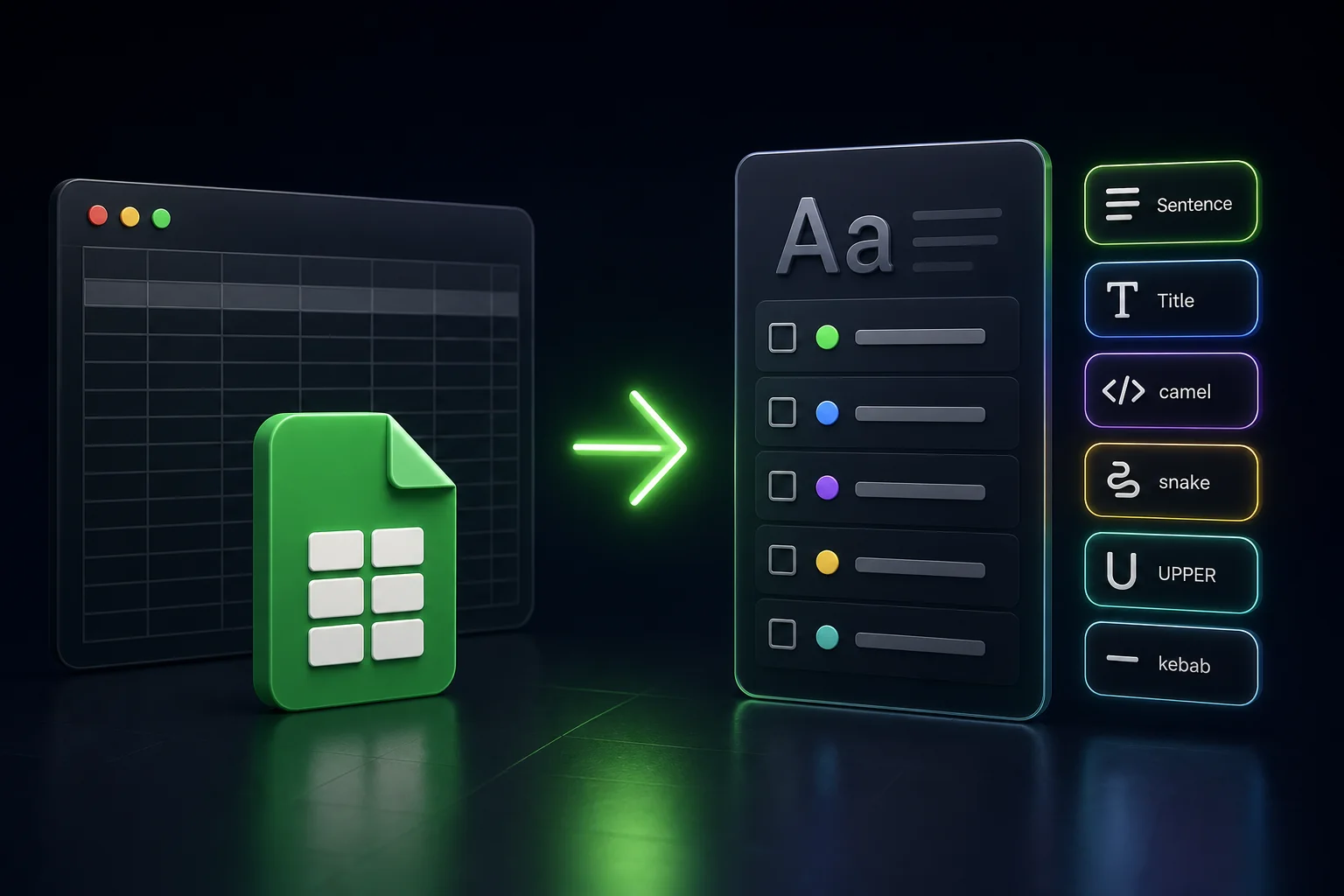
The Case tab in Text Power Tools is built for that. Pick a style, apply it to the selection, and you are done.
Using the Case tab
Most of the time you are doing one of two things: making text easier to read, or making it match a naming convention another tool expects.
- Cleanup: options like Sentence case, Capitalized Case, lower case, or UPPER CASE so a messy column stops fighting you.
- Structured data: camelCase, PascalCase, snake_case, kebab-case, and similar when the destination cares about separators and caps.
The sidebar lists every transform. The table below is the same list in plain language, so you can scan it without clicking through.
What each transform does
| Transform | Description |
|---|---|
| Sentence case | Capitalizes the first letter of each sentence |
| Capitalized Case | Capitalizes the first letter of each word |
| lower case | Converts all text to lowercase |
| UPPER CASE | Converts all text to uppercase |
| iNVERT cASE | Swaps uppercase and lowercase letters |
| kebab-case | Joins words with hyphens |
| hyphen-case | Uses hyphens between words while preserving case |
| dot.case | Uses lowercase words separated by dots |
| camelCase | Keeps the first word lowercase and capitalizes the rest |
| PascalCase | Capitalizes each word with no separators |
| snake_case | Joins words with underscores |
| SCREAMING_SNAKE_CASE | Uses uppercase words joined with underscores |
| SCREAMING-KEBAB-CASE | Uses uppercase words joined with hyphens |
| AlTeRnAtInG cAsE | Alternates uppercase and lowercase letters |
One thing to watch
Case conversion is mechanical. It does not know that a brand name should keep its weird capitalization or that a legal name should stay exactly as entered.
If the column has proper nouns or anything that must not change by a single letter, try a copy first. The add-on works on what you see in the cell. That is a feature until it is not.
How to use it
- Open Text Power Tools -> Start
- Select the range
- Switch to Case
- Choose the target style
- Click Apply
Want before-and-after without touching production data? The Text Power Tools - Examples Workbook is the quickest sanity check.
For the full add-on tour, read Text Power Tools for Google Sheets. Screenshots and install links live on Google Sheets Text Power Tools.