
A lot of spreadsheet work is not analysis: it is preparing values for another system.
One upload needs WH- before every ID. Another requires -EU at the end of every SKU. Sometimes you need separators inserted into fixed-format codes before importing data somewhere else.
Those edits are simple in small batches, but repetitive and error-prone across hundreds or thousands of rows.
The Insert tab in Text Power Tools is built for that kind of bulk text change in Google Sheets. You select the cells, run the tool, and the values are updated in place.
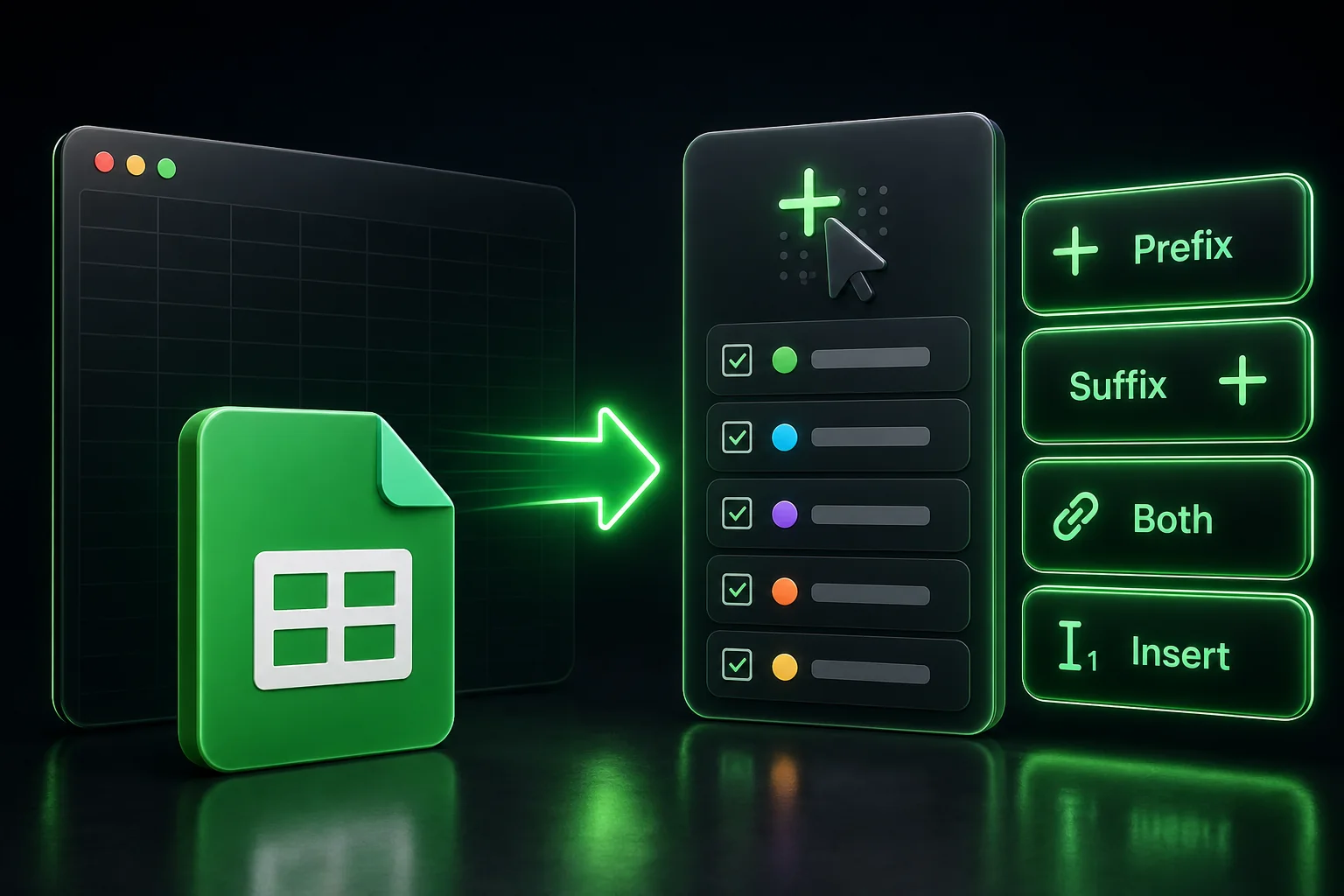
What the Insert tab can do
The Insert tools apply the same text change across every selected cell.
| Operation | What it does |
|---|---|
| Add prefix | Adds the same text to the beginning of every selected cell |
| Add suffix | Adds the same text to the end of every selected cell |
| Add prefix and suffix | Applies both in a single operation |
| Insert at position | Inserts text at the same character position in every selected cell |
Common use cases
Prepare IDs for imports
Examples: WH-1001, INV-2026, SKU-445
Many systems expect identifiers with a fixed prefix before import. Instead of rebuilding values with formulas or helper columns, you can apply the same prefix to every selected row in one step.
Label exports and datasets
Examples: ABC123-EU, ITEM-US, draft-v2
Suffixes are useful when datasets need region labels, environment markers, or version tags before export or sharing.
Reformat machine-generated codes
Sometimes values are technically correct but hard to read or rejected during import.
| Before | After |
|---|---|
ABCD1234 | ABCD-1234 |
20260512 | 2026-05-12 |
SKU445566 | SKU-445-566 |
This is where Insert at position becomes useful. You can place separators at fixed character positions across the entire selection.
How Insert at position works
The tool uses 1-based positions:
- Position
1inserts before the first character - Position
5inserts after the fourth character - To insert at the end, use length + 1
Example:
| Original | Position | Inserted text | Result |
|---|---|---|---|
ABCD1234 | 5 | - | ABCD-1234 |
Why this helps
Many spreadsheet text edits are formatting, not math. Without a bulk tool, people often end up manually editing cells, adding temporary helper columns, or copy-pasting transformed values back where they belong. Insert turns that into one batch step on the selection.
How to run it
- Open Text Power Tools -> Start
- Select the cells you want to change
- Open the Insert tab
- Choose prefix, suffix, both, or insert at position
- Click Apply
If you want to try positions and patterns on sample data first, use the Text Power Tools - Examples Workbook.
For the full add-on tour, read Text Power Tools for Google Sheets. For the product page, screenshots, and install links, see Google Sheets Text Power Tools.