
If you've ever said "but those two cells are the same" right before Google Sheets proved they were not, this tool will make sense immediately.
The annoying part is that messy spreadsheet text rarely looks broken. It looks almost right. A customer name has one extra space. A product code is missing the prefix your import expects. A notes field hides three email addresses in a block of prose. Nothing looks dramatic, but everything downstream starts acting weird.
Text Power Tools is built for that last-mile cleanup. It gives you a sidebar inside Google Sheets where you can change case, add or insert text, clean noisy strings, or extract patterns from whatever cells you already selected.
What it does in practice
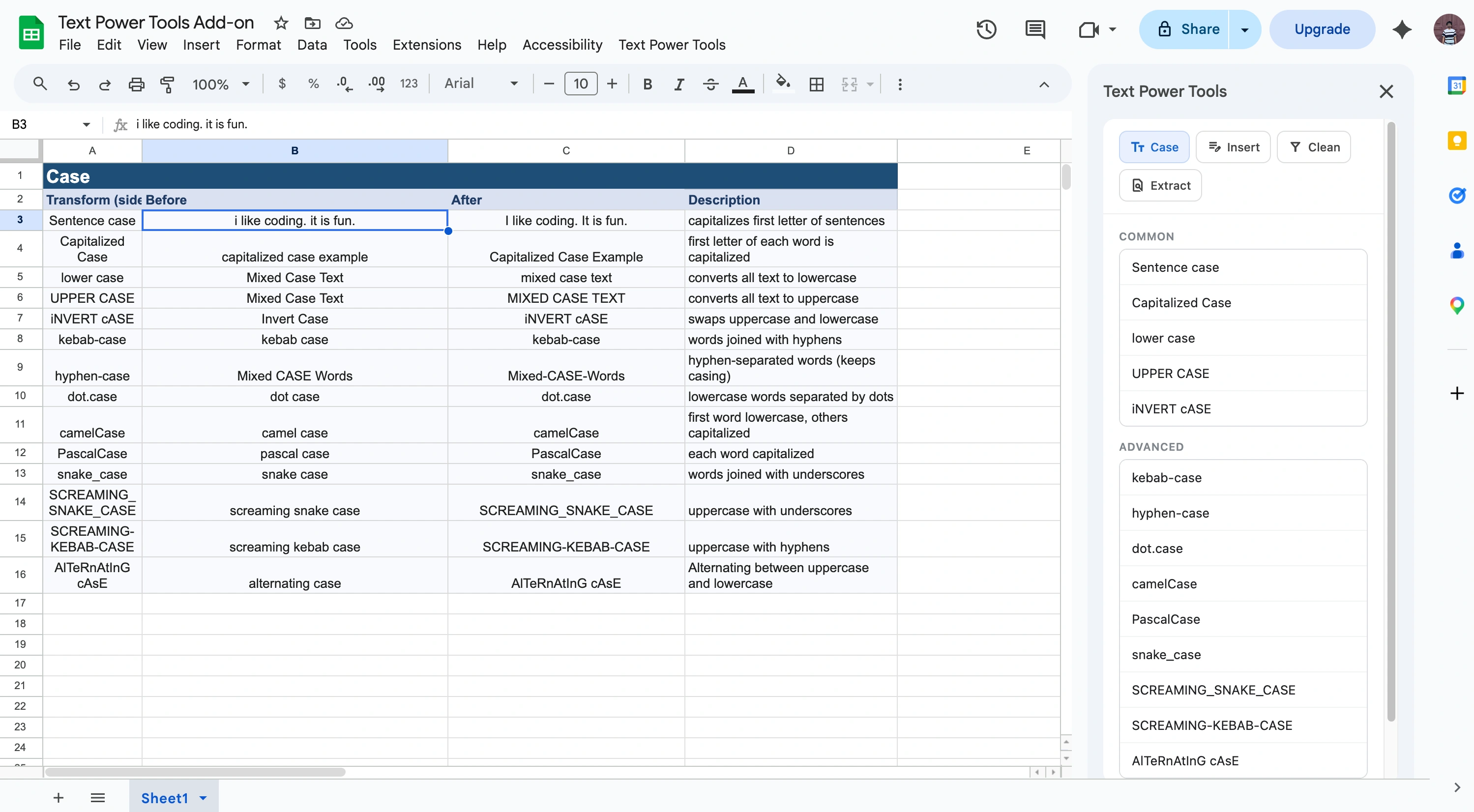
After you install it, open Text Power Tools -> Start from the Sheets menu. The sidebar has four tabs: Case, Insert, Clean, and Extract.
The workflow is simple. Select a range, choose the operation, hit Apply. The add-on reads the displayed text in those cells, then writes the transformed result back into the same range.
That matters because this is not a helper-column tool. It is for the moment when you know what rule you want, and you want the sheet to reflect that rule now.
Four tabs, four kinds of spreadsheet pain
Case
Use this when the text is correct but the format is a mess. Think customer name, Customer Name, CUSTOMER_NAME, and camelCase all living in the same column like that was a reasonable choice.
The Case tab handles both normal capitalization and naming-style conversions. If that is the problem you're dealing with, start here: Change Case and Naming Styles in Google Sheets.
Insert
Use this when the values are almost ready, but not quite. You need to add WH- to every warehouse ID, append a suffix to each SKU, or insert a delimiter after a fixed number of characters.
That is what the Insert tab is for. More examples here: Add Prefix, Suffix, and Insert Text in Google Sheets.
Clean
Use this when your data has junk in it. Leading spaces. Trailing spaces. Currency symbols. Punctuation from a copy-paste. Digits that should not be there.
The Clean tab handles that repair work without forcing you into nested formulas. If hidden whitespace and stray characters are the real problem, read this next: Trim and Clean Spreadsheet Text in Google Sheets.
Extract
Use this when one cell contains more than one thing and you need to pull the useful parts out. Common example: a note field that contains emails, URLs, phone numbers, or dates mixed in with regular text.
The Extract tab finds those matches and replaces the cell with the joined result. Full walkthrough: Extract Emails, URLs, Dates, and Regex Matches in Google Sheets.
When this tool is the right fit
Text Power Tools is best when the problem lives inside the text itself. Characters, spacing, casing, repeated prefixes, buried patterns.
If the real issue is sheet layout instead, merged cells, repeated headers, ranges that need reshaping, you probably want a different tool. In that case, Merge Tools for Google Sheets is the better match.
Try it on sample data first
If the rule is even slightly destructive, duplicate the tab first. Better yet, use the Text Power Tools - Examples Workbook and test the behavior on sample ranges before touching the sheet that actually matters.
For a quick product overview, screenshots, and links, see Google Sheets Text Power Tools.