
Spreadsheet cleanup is not a math problem; it is a repetition problem. The failure mode is the same every time: one invisible character in one cell, and suddenly filters, sorts, and matches disagree with your eyes.
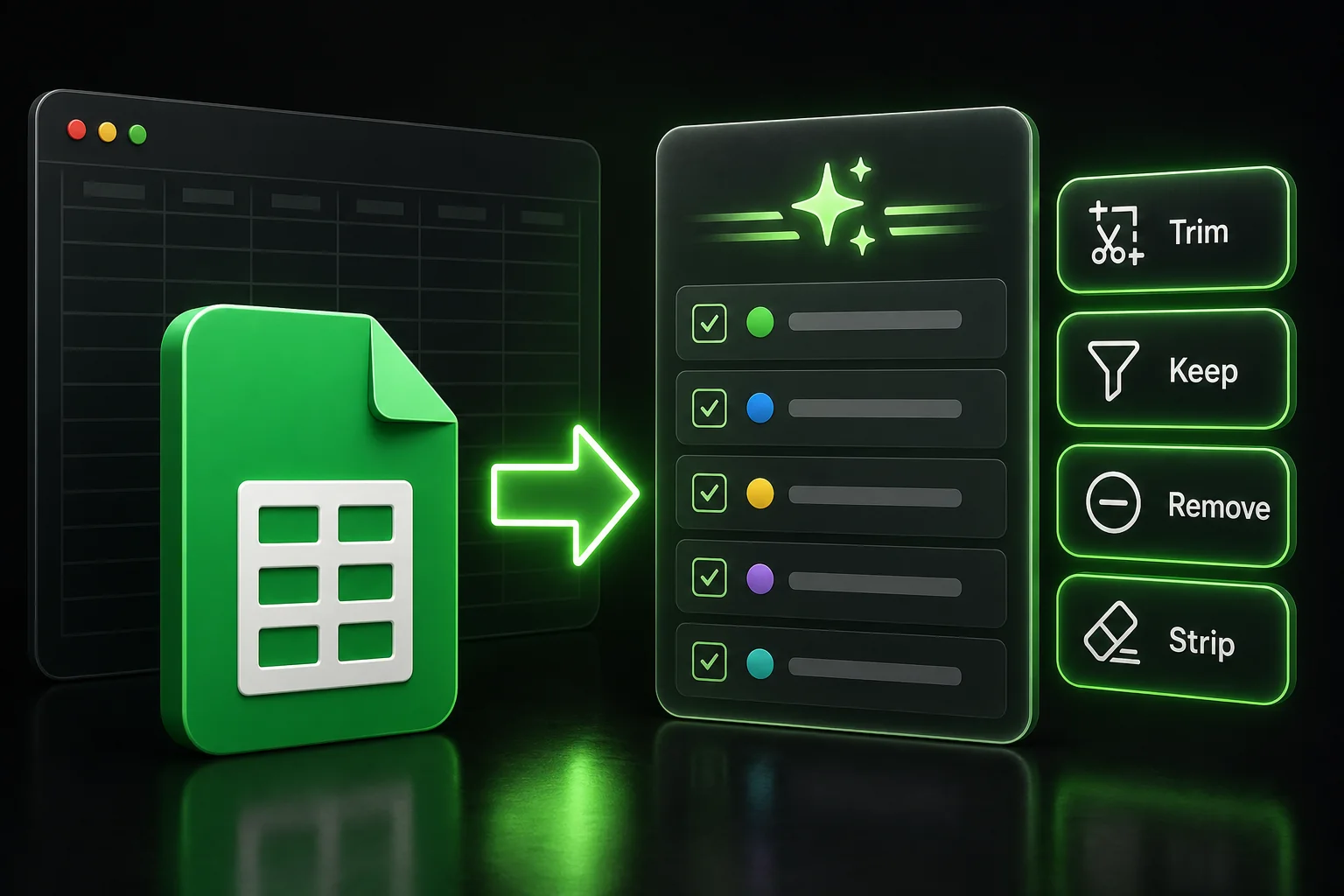
That is the territory of the Clean tab in Text Power Tools. It is built for boring fixes that matter a lot: trimming whitespace, keeping only certain character types, stripping digits when they are noise, or removing the exact symbols that break imports.
What the Clean tab can do
The Clean tools apply the same rule across every selected cell.
| Operation | What it does |
|---|---|
| Trim leading spaces | Removes spaces from the start of the text. |
| Trim trailing spaces | Removes spaces from the end of the text. |
| Trim both ends | Removes padding on both sides in one step. |
| Keep alphanumeric only | Keeps only letters and numbers. |
| Keep letters only | Keeps only letter characters. |
| Keep digits only | Keeps only digit characters. |
| Remove all digits | Removes all digit characters. |
| Strip listed characters | Removes the characters you specify. |
Common cleanup tasks
Remove unwanted whitespace
Clean extra spaces from copied, imported, or manually entered data.
Keep only required characters
Filter text down to letters, numbers, or digits depending on the target format.
Remove unwanted symbols
Strip punctuation, separators, currency symbols, or other unwanted characters from selected cells.
Why this helps
Many spreadsheet text edits are cleanup, not math. Without a bulk tool, people end up manually editing cells, stacking helper columns, or copy-pasting transformed values back where they belong. Clean turns that into one batch step on the selection.
How to run it
- Open Text Power Tools -> Start
- Select the range
- Open the Clean tab
- Choose trim, keep/remove, or strip characters as needed
- Click Apply
If the cleanup feels even slightly destructive, test it in the Text Power Tools - Examples Workbook or duplicate the tab first.
For the full add-on tour, read Text Power Tools for Google Sheets. For the product page, screenshots, and install links, see Google Sheets Text Power Tools.